Managing Your Notification Preferences
SearchEye lets you control exactly how and when you receive updates — whether you want instant alerts as things happen or a clean daily or weekly summary. This article walks you through each section of the Notifications settings page.
How to Get There
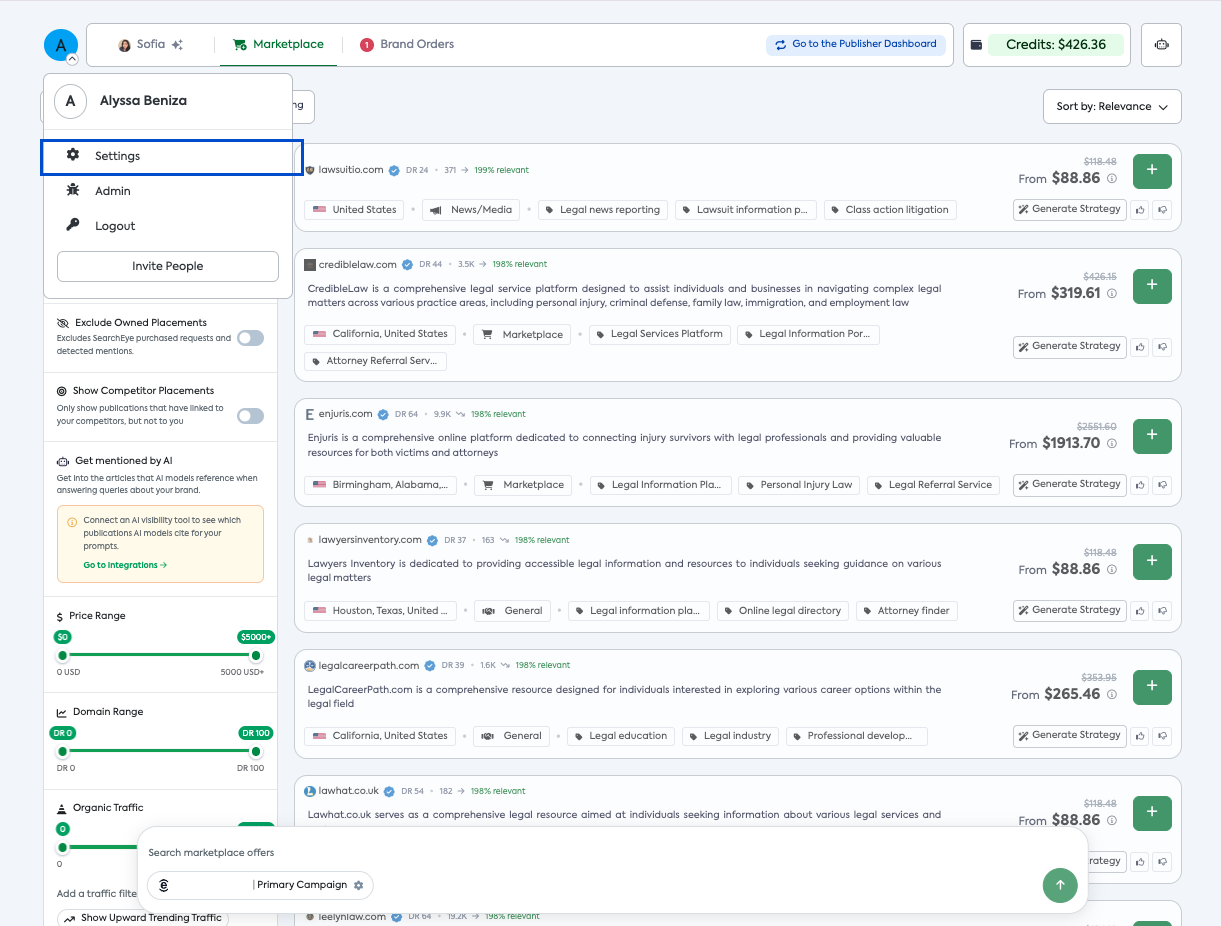
Click your account avatar in the top-left corner of the platform.
Select Settings from the dropdown menu.
Click Notifications in the left sidebar under the Personal section.
Email Preferences
These toggles control platform and marketing emails sent to your account.
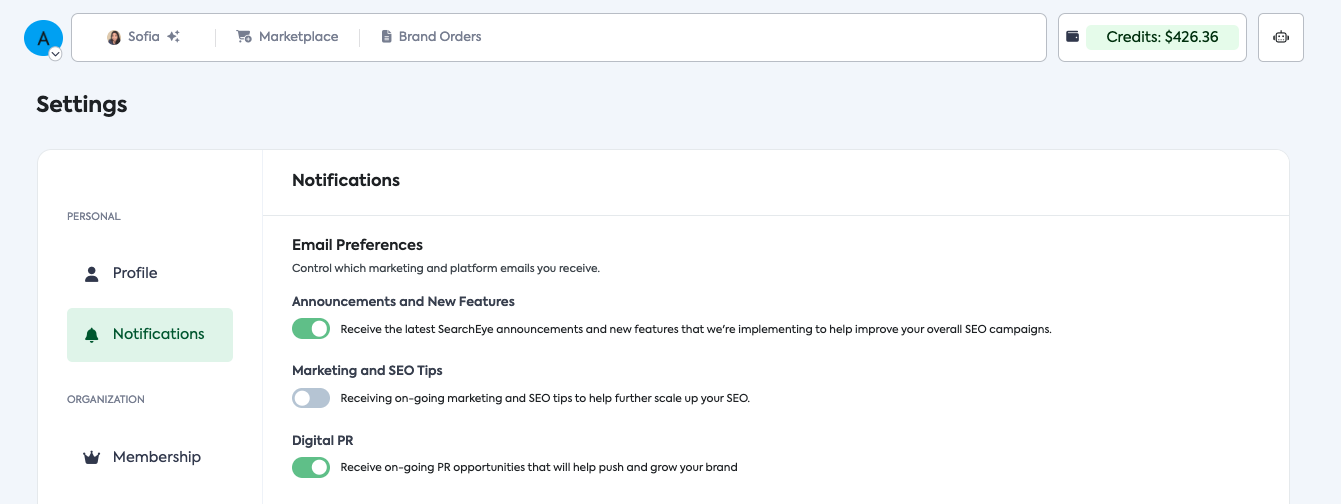
Setting | What it does |
|---|---|
Announcements and New Features | Receive emails about new SearchEye features and platform updates. |
Marketing and SEO Tips | Get ongoing tips to help scale your SEO campaigns. |
Digital PR | Receive PR opportunity alerts to help grow your brand's presence. |
Brand Notifications
This section controls how your team is notified about brand order updates (e.g. order status changes, published articles, and other campaign activity).
⚠️ Note: At least one option must remain enabled at all times.
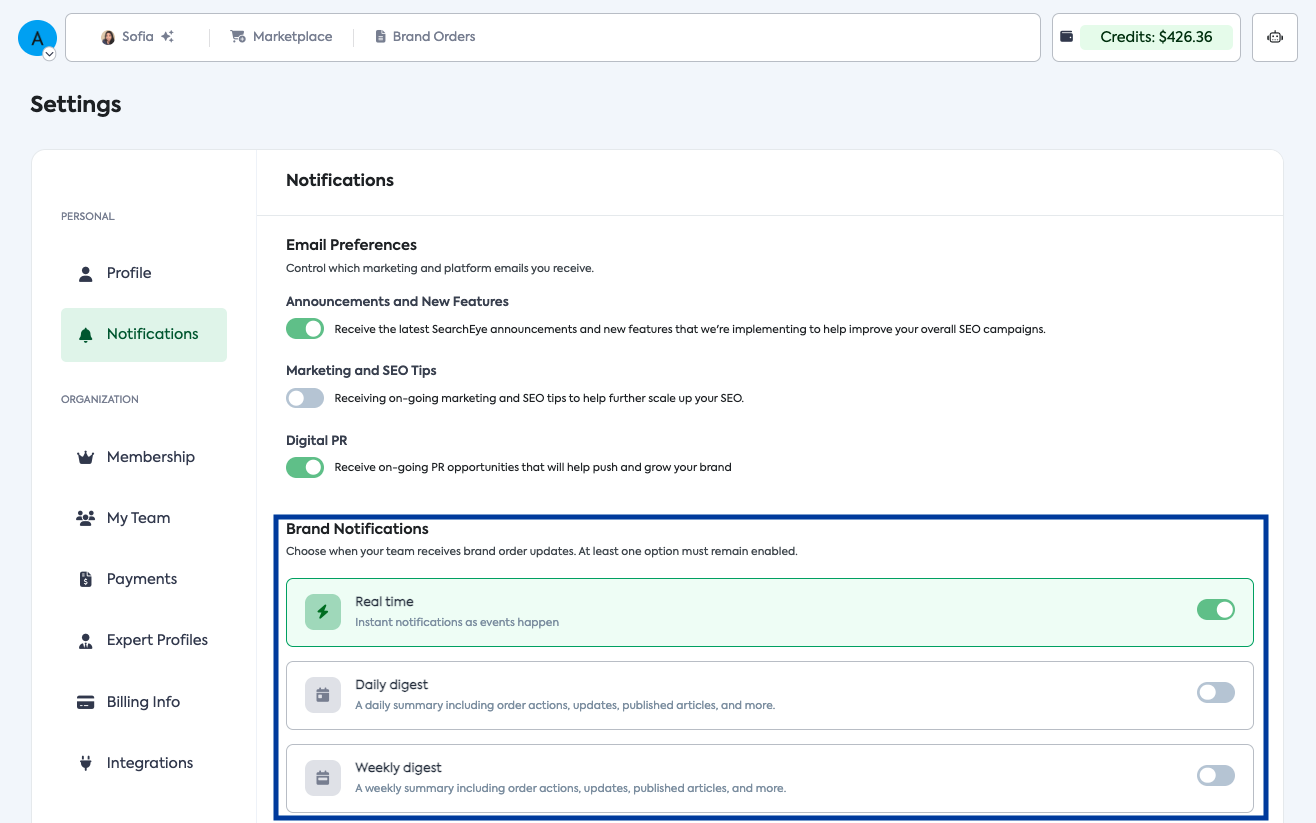
Option | What it does |
|---|---|
Real time | Sends an instant notification every time an event occurs. |
Daily digest | Sends one daily summary email covering all order actions, updates, and published articles from the past 24 hours. |
Weekly digest | Sends one weekly summary email with the same information, delivered once a week. |
You can enable more than one option — for example, keeping Real time on while also receiving a Daily digest recap.
Saving Your Preferences
Once you've made your changes, click Save preferences in the bottom-right corner of the page. Your settings will take effect immediately.
Frequently Asked Questions
Can I turn off all brand notifications?
No — at least one Brand Notification option must remain enabled at all times to ensure you stay informed about your active orders.
What's included in a digest email?
Both daily and weekly digests include order actions, status updates, newly published articles, and other platform activity within the selected time window.
Who do these settings apply to?
Notification preferences are personal — they apply to your individual account only, not your entire team.