Setting Up Co-Pilot: Adding & Configuring Your Brand
Co-Pilot Settings is where you give SearchEye the context it needs to find the right publishers, generate relevant content strategies, and place your brand effectively. This article walks you through opening Co-Pilot Settings, adding a brand, and completing each configuration tab.
How to Open Co-Pilot Settings
Co-Pilot Settings is accessible directly from the Marketplace. Look for the campaign selector bar at the bottom of the screen — it displays your active brand and campaign (e.g. diamondlaw.ca | Primary Campaign). Click the gear icon ⚙ next to it to open the Co-Pilot Settings modal.
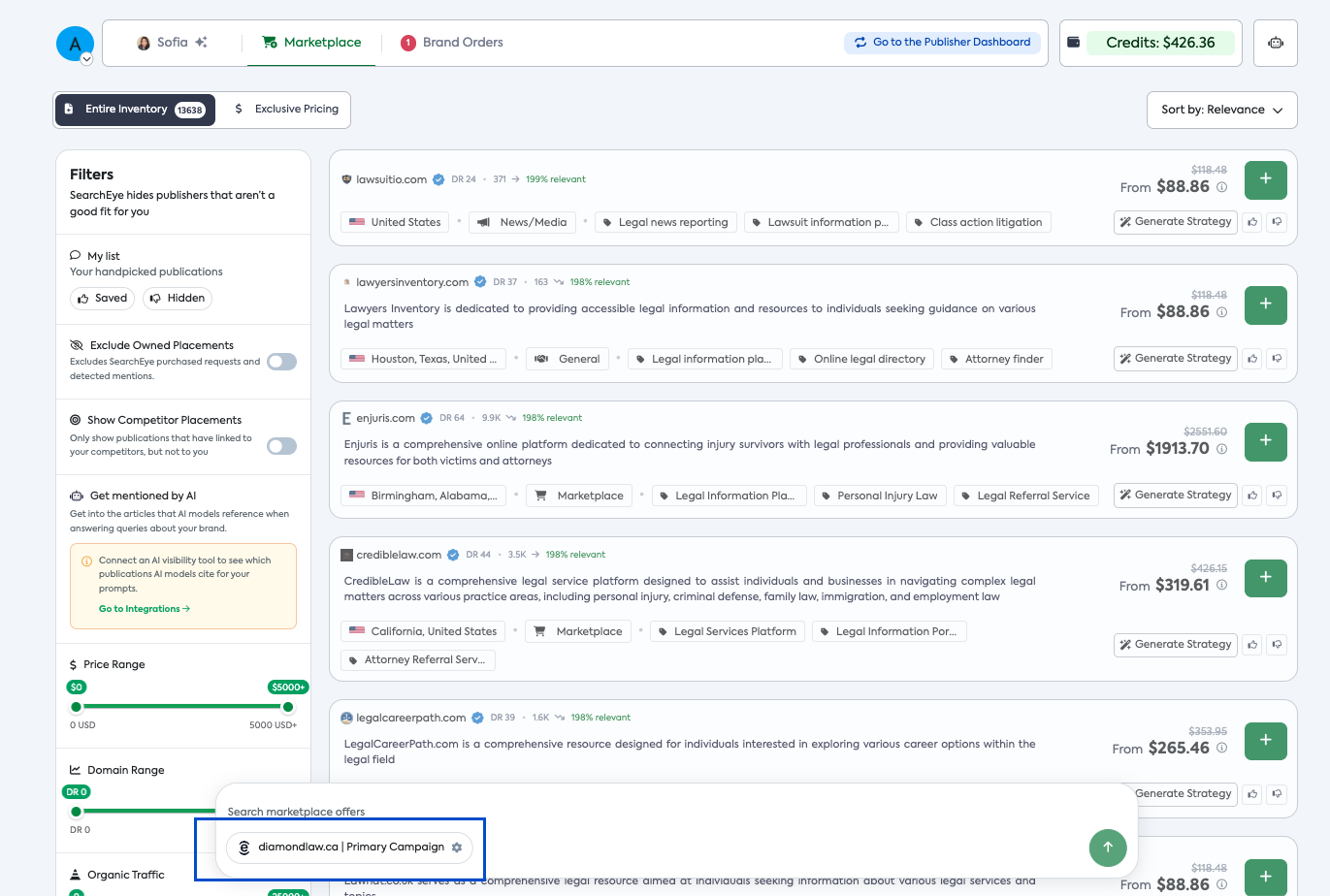
The campaign selector bar at the bottom of the Marketplace. Click the gear icon to open Co-Pilot Settings.
The Co-Pilot Settings Modal
Once open, the modal displays your currently selected brand in the dropdown at the top. There are five tabs across the top:
Primary Campaign — Goals, content formats, keywords, and campaign notes
About Your Company — Brand names, description, target market, and topic preferences
Competitors — Competitor domains to track content gaps
Media — Brand image and media file uploads
Team Members — People who have access to this brand
You can also switch between brands using the dropdown at the top, or add a new brand using the + Add Brand button.
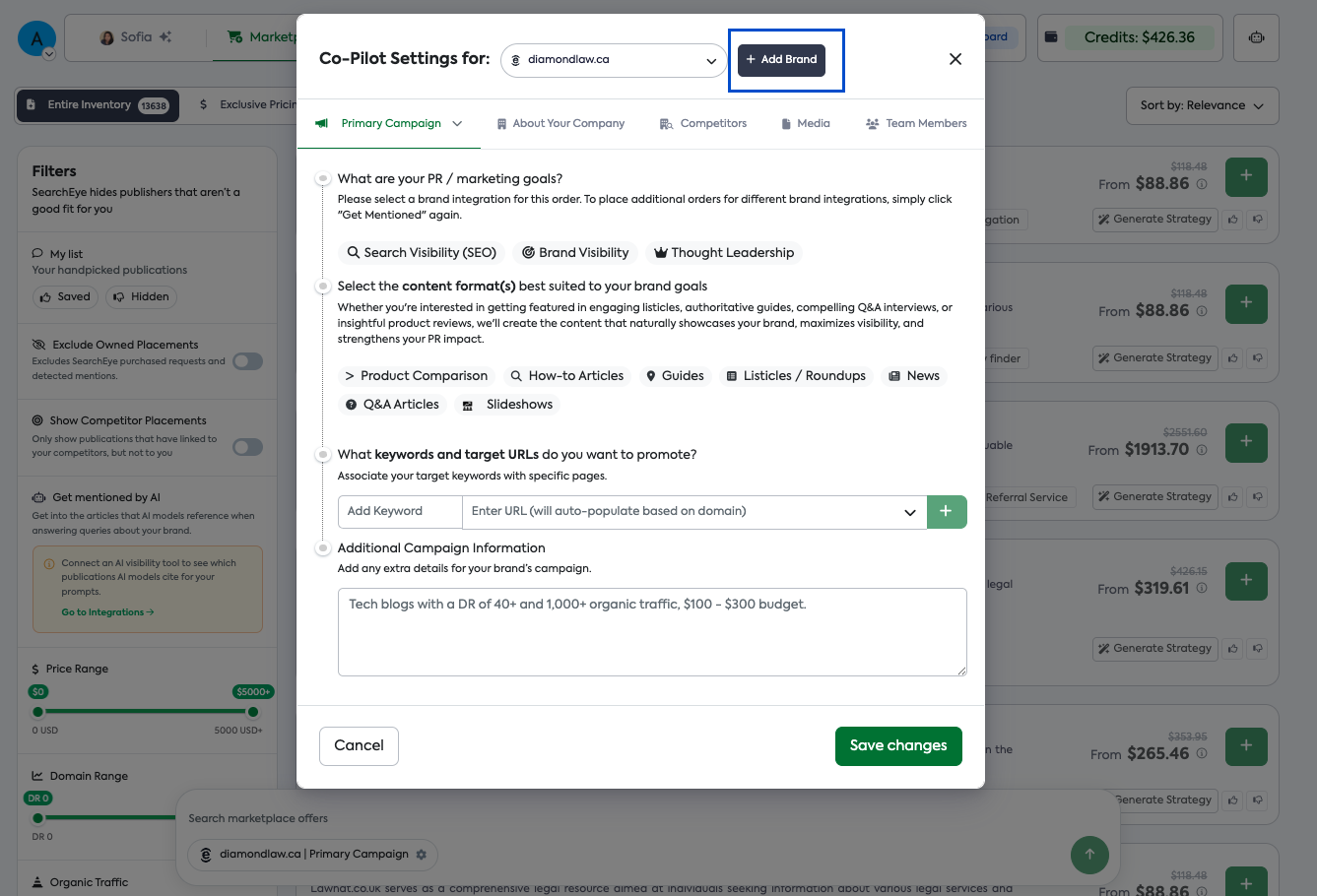
The Co-Pilot Settings modal. The brand dropdown and + Add Brand button are in the top bar.
Adding a New Brand
If you manage multiple websites or clients, you can add each one as a separate brand in SearchEye.
Open Co-Pilot Settings via the gear icon in the campaign selector.
Click + Add Brand in the top-right of the modal.
An Add New Site dialog will appear.
Enter the Company Website URL.
Select the website goals: Search Visibility (SEO), Brand Visibility, or Thought Leadership.
Choose your estimated marketing budget from the dropdown.
Click Save changes.
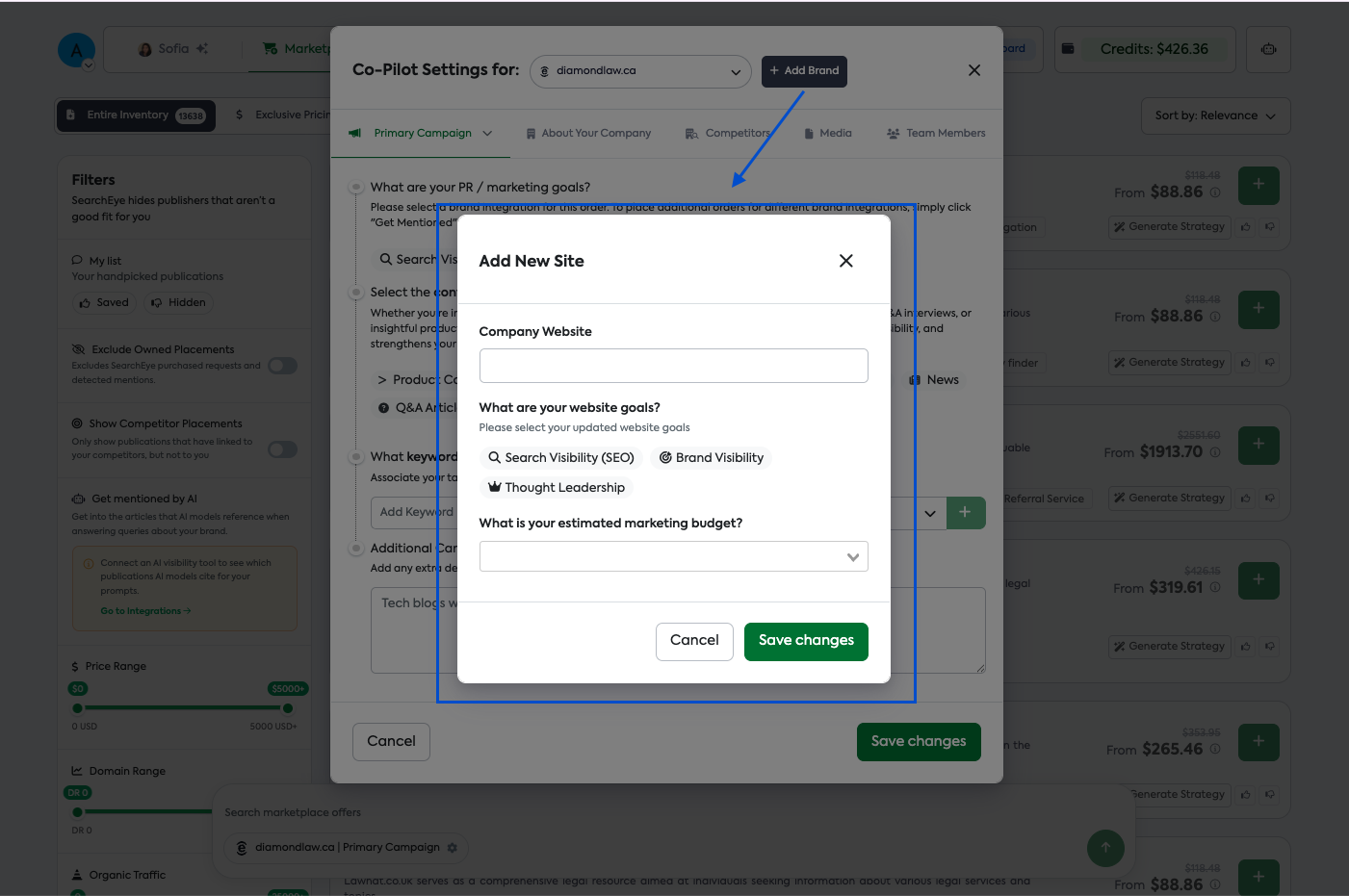
The Add New Site dialog. Fill in the URL, select your goals, and set a budget to get started.
Once added, your new brand will appear in the brand dropdown at the top of the Co-Pilot Settings modal. You can manage multiple brands from the same account.
Managing Campaigns
Within a brand, you can run multiple campaigns targeting different goals or keyword clusters. The Primary Campaign dropdown in the tab bar shows all campaigns associated with the selected brand.
Click the Primary Campaign tab to see the dropdown.
Select any existing campaign to view or edit it.
Click All Campaigns + to create a new one.
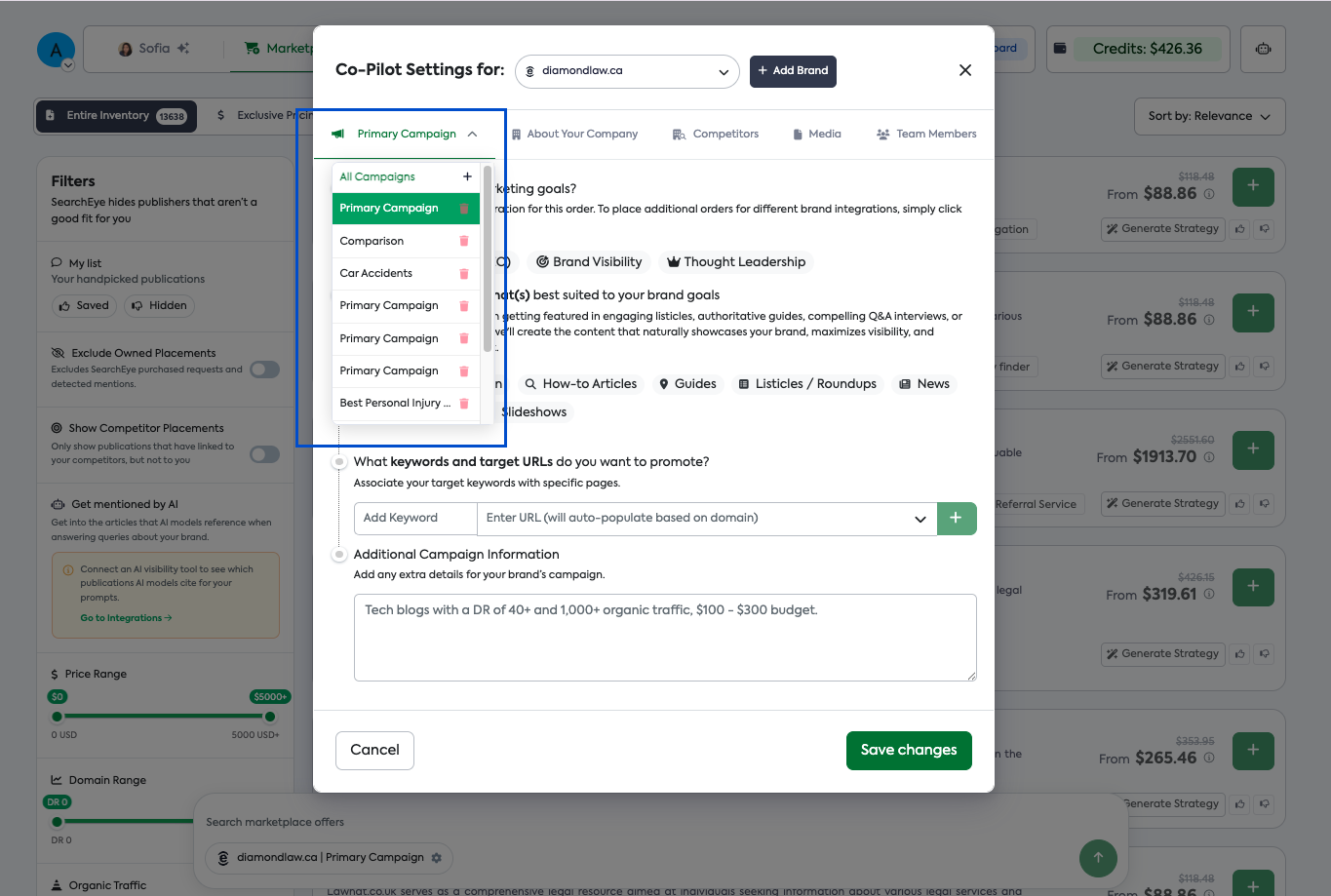
The campaign dropdown under the Primary Campaign tab. Use this to switch between or create campaigns.
Tab-by-Tab Configuration
Primary Campaign
This tab defines the campaign-level strategy SearchEye uses when matching you with publishers and generating content briefs.
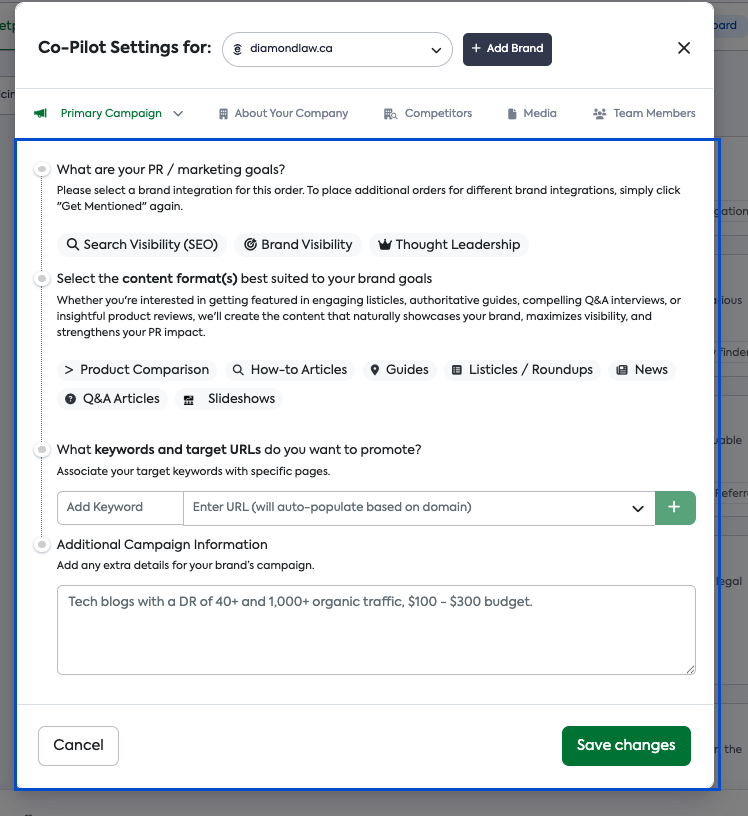
The Primary Campaign tab — fill in all four sections for best results.
Field | What to fill in |
|---|---|
PR / Marketing Goals | Select one: Search Visibility (SEO), Brand Visibility, or Thought Leadership. |
Content Format(s) | Choose the types of content you want to be featured in: Product Comparison, How-to Articles, Guides, Listicles / Roundups, News, Q&A Articles, or Slideshows. |
Keywords & Target URLs | Add the keywords you want to rank for and associate each with the specific page on your site you want to promote. |
Additional Campaign Information | Add any extra targeting notes — e.g. preferred DR range, traffic thresholds, or budget guidelines for publishers. |
💡 Tip: The more detail you add to Additional Campaign Information, the better SearchEye can filter publisher matches for you.
About Your Company
This tab captures your brand identity. The information here is sent directly to publishers as part of the placement pitch.
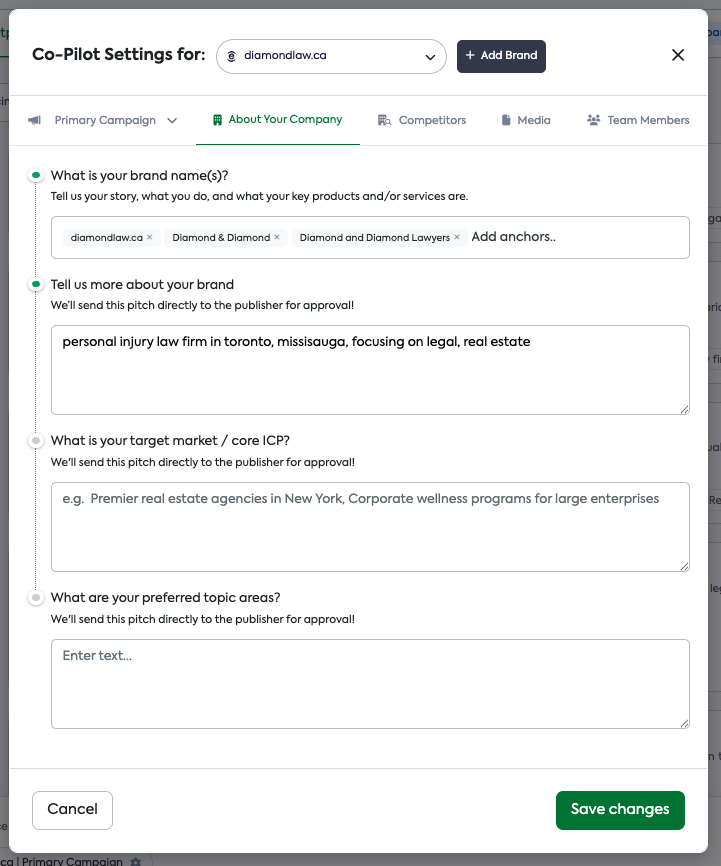
The About Your Company tab. Publishers receive this information when reviewing your placement request.
Field | What to fill in |
|---|---|
Brand Name(s) | Add all variations of your brand name, including the domain and any common aliases (e.g. "Diamond & Diamond", "Diamond and Diamond Lawyers"). |
Tell us more about your brand | A short pitch describing what you do, your location, and your key services. This is sent to publishers directly. |
Target Market / Core ICP | Describe your ideal customer or market segment (e.g. "SMBs in the US looking for HR software"). |
Preferred Topic Areas | List the content topics most relevant to your brand for publisher matching. |
Competitors
Add competitor domains so SearchEye can scan their public mentions and surface placement opportunities you may be missing.
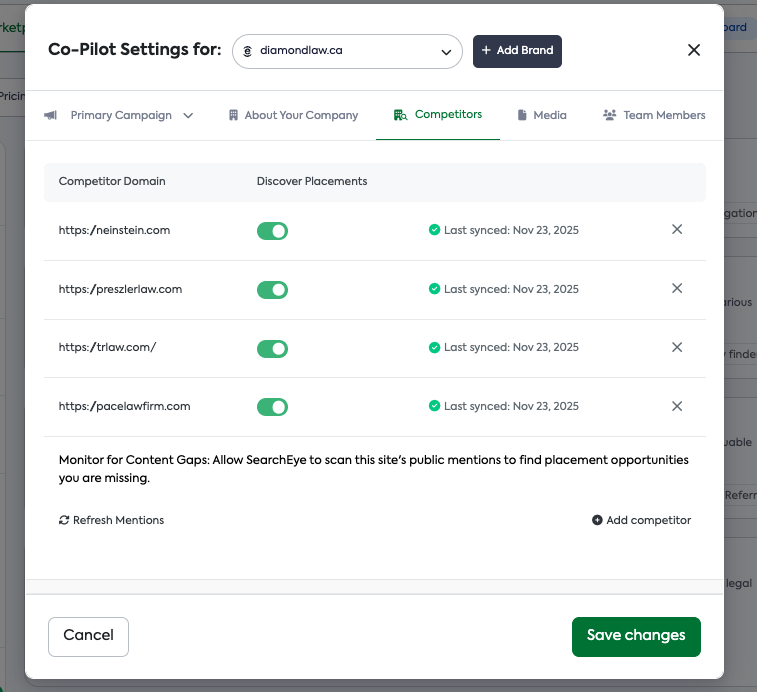
The Competitors tab. Toggle on Discover Placements for each competitor to enable content gap monitoring.
Click + Add competitor to add a domain.
Toggle Discover Placements on to allow SearchEye to monitor that competitor's mentions.
Click Refresh Mentions to manually trigger a sync.
Last synced dates are shown next to each entry so you know how fresh the data is.
Media
Upload brand assets that publishers can use when creating content about your brand — headshots, logos, product images, etc.
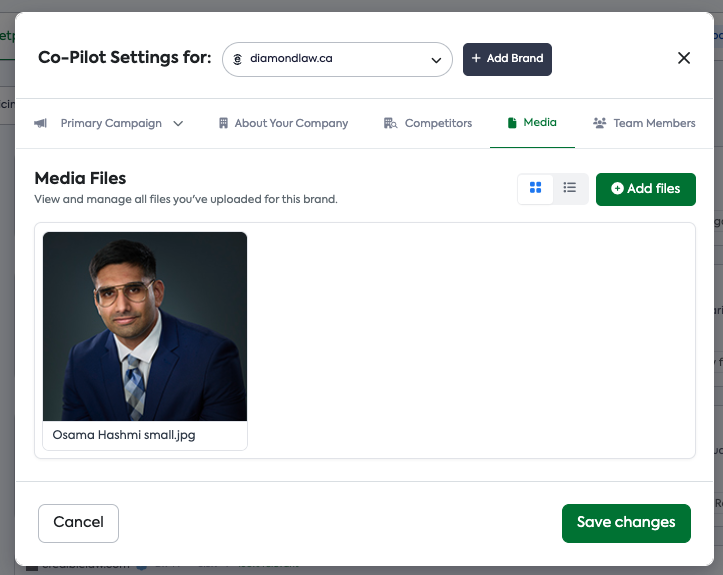
The Media tab. Keep your brand assets here so publishers always have access to the right files.
Click + Add files to upload images.
Switch between grid and list view using the icons in the top-right.
Files are stored per brand — each brand has its own media library.
Team Members
Control who on your team has access to this brand's settings and orders.
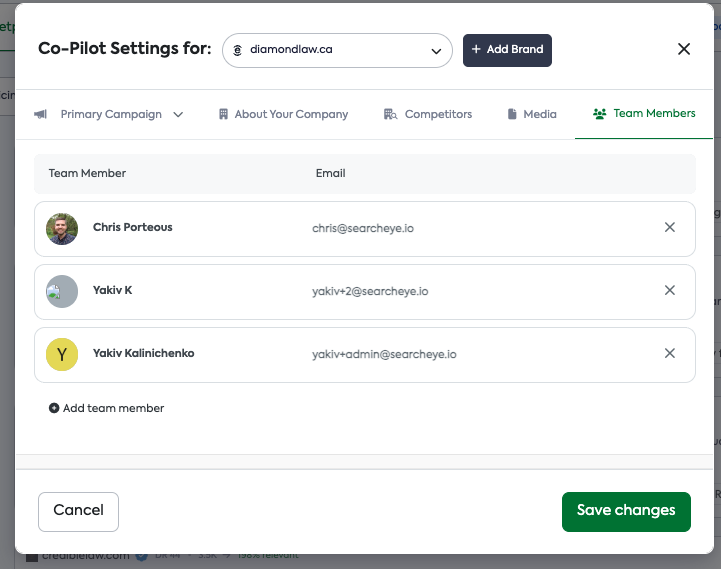
The Team Members tab. Add or remove access per brand.
Click + Add team member to give someone access.
Each member is listed with their name and email.
Click the ✕ next to any member to remove their access.
⚠️ Note: Team member access is managed per brand. Adding someone to one brand does not automatically give them access to other brands on your account.
Saving Your Changes
Each tab has its own Save changes button at the bottom-right. Make sure to save before switching tabs or closing the modal, as unsaved changes will be lost.
Frequently Asked Questions
Can I have multiple brands under one account?
Yes. Use the + Add Brand button to add as many brands or client sites as needed. Each brand has its own Co-Pilot settings, campaigns, and media library.
How many brands can I add?
It depends on your plan.
Pro supports up to 10 brands, while Agency and Enterprise both support up to 50 brands.
If you need to add more brands, contact our support team for details.
How do I remove a brand from my account?
Click the brand dropdown at the top of Co-Pilot Settings to expand the list of brands on your account. Find the brand you want to remove and click the✕next to it. The brand will be removed from your account immediately.
Can I have multiple campaigns per brand?
Yes. Within a brand, you can create multiple campaigns targeting different goals, keywords, or audience segments. Use the campaign dropdown in the Primary Campaign tab to manage them.
Why does "About Your Company" say it's sent to publishers?
When you place an order with a publisher, SearchEye automatically sends your brand pitch from this tab as part of the request. Keeping it accurate and up to date improves approval rates.
What does "Discover Placements" do in the Competitors tab?
When enabled, SearchEye scans your competitor's public content mentions to identify publishers that have featured them but not you — revealing placement gaps you can target.
Do team members need their own SearchEye account?
Yes. Team members must have an existing SearchEye account to be added. They'll access the brand using their own login credentials.