What Happens After You Place an Order
Once you send a placement request through the Marketplace, SearchEye manages the entire fulfillment process on your behalf. This article walks through each stage — what SearchEye and the publisher are doing, when you'll be notified, and what you need to do at each step.
You do not need to log in to your SearchEye account to manage orders. Each order has its own micropage — a unique link sent to you by email — where you can review content, approve orders, make payments, and send messages without signing in.
The Full Order Journey
1 Request sent to publisher Automatic
After you click Send Request, SearchEye generates a tailored pitch and sends it to the publisher on your behalf. No action is needed from you at this stage.
The order will show as In Progress – Publisher pitch approval in your Brand Orders dashboard.
2 Publisher reviews the pitch Automatic
The publisher reviews the pitch and decides whether to accept the collaboration. SearchEye handles all communication with the publisher during this stage.
If the publisher declines, the order will be marked Canceled and any credits paid will be refunded to your account.
3 Publisher approves — payment required Action needed
When the publisher accepts your request, you will receive an email notification with a link to your order's micropage.
If you have Auto place order if approved enabled and sufficient credits, the order is placed automatically, and you can skip to the next step.
If not, you will need to complete payment manually. Click Pay Now on the micropage or in your Brand Orders dashboard to confirm and fund the order.
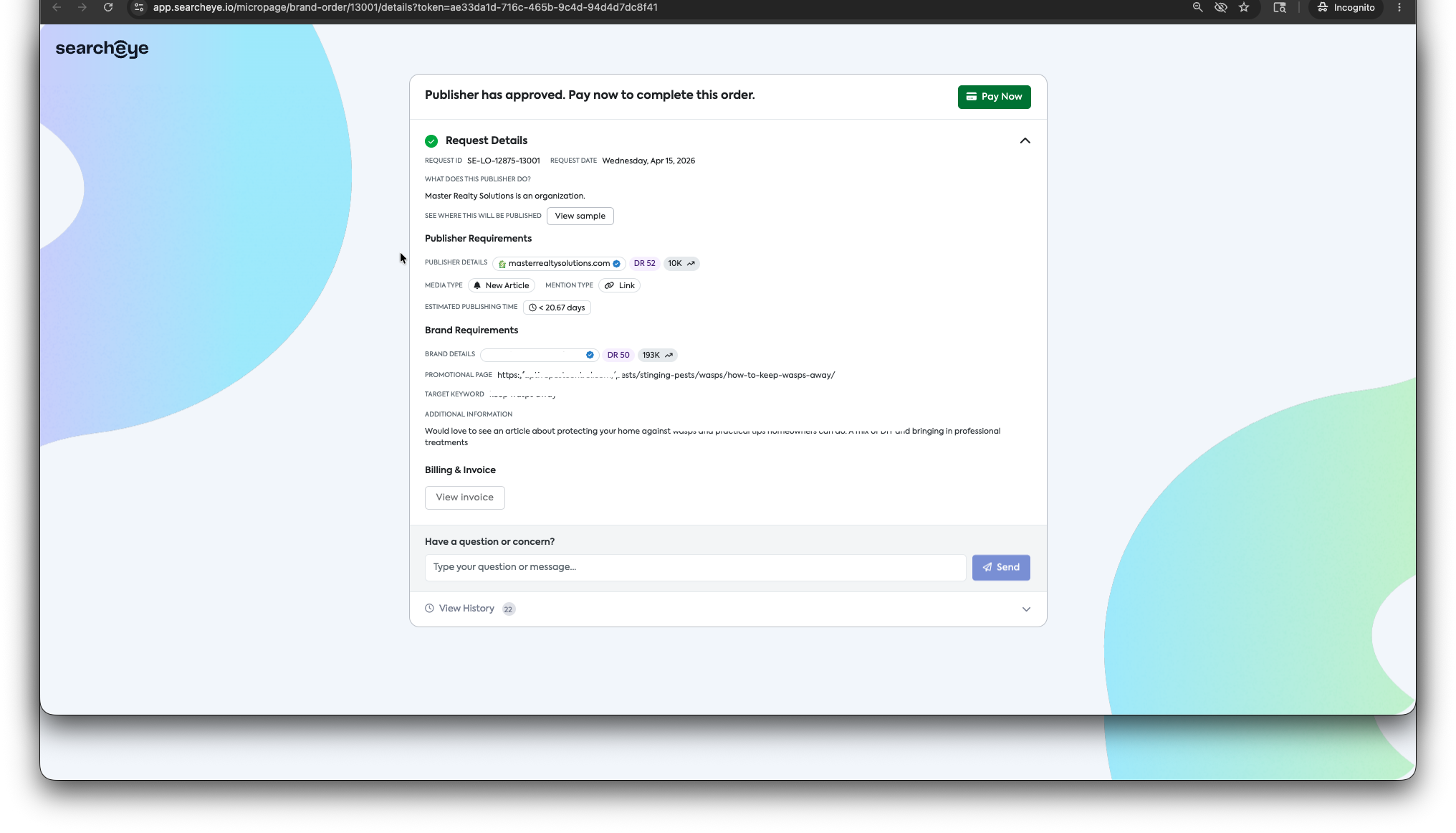
The micropage also shows full order details, including publisher requirements, your brand requirements (promotional page, target keyword, additional notes), estimated publishing time, and a billing and invoice section.
You can send messages directly to SearchEye from the micropage using the Have a question or concern? field.
You can also view the full order history by expanding View History.
4 Content is created and reviewed Automatic
Once the order is placed, SearchEye generates the article content based on your brand requirements and the publisher's guidelines. The content goes through an internal quality check before being sent for approval.
The order will show as In Progress – SearchEye reviewing content during this stage.
5 Your content approval Action needed
If you have Approve content before publishing enabled on your order, you will receive an email with a link to your micropage when the content is ready for review.
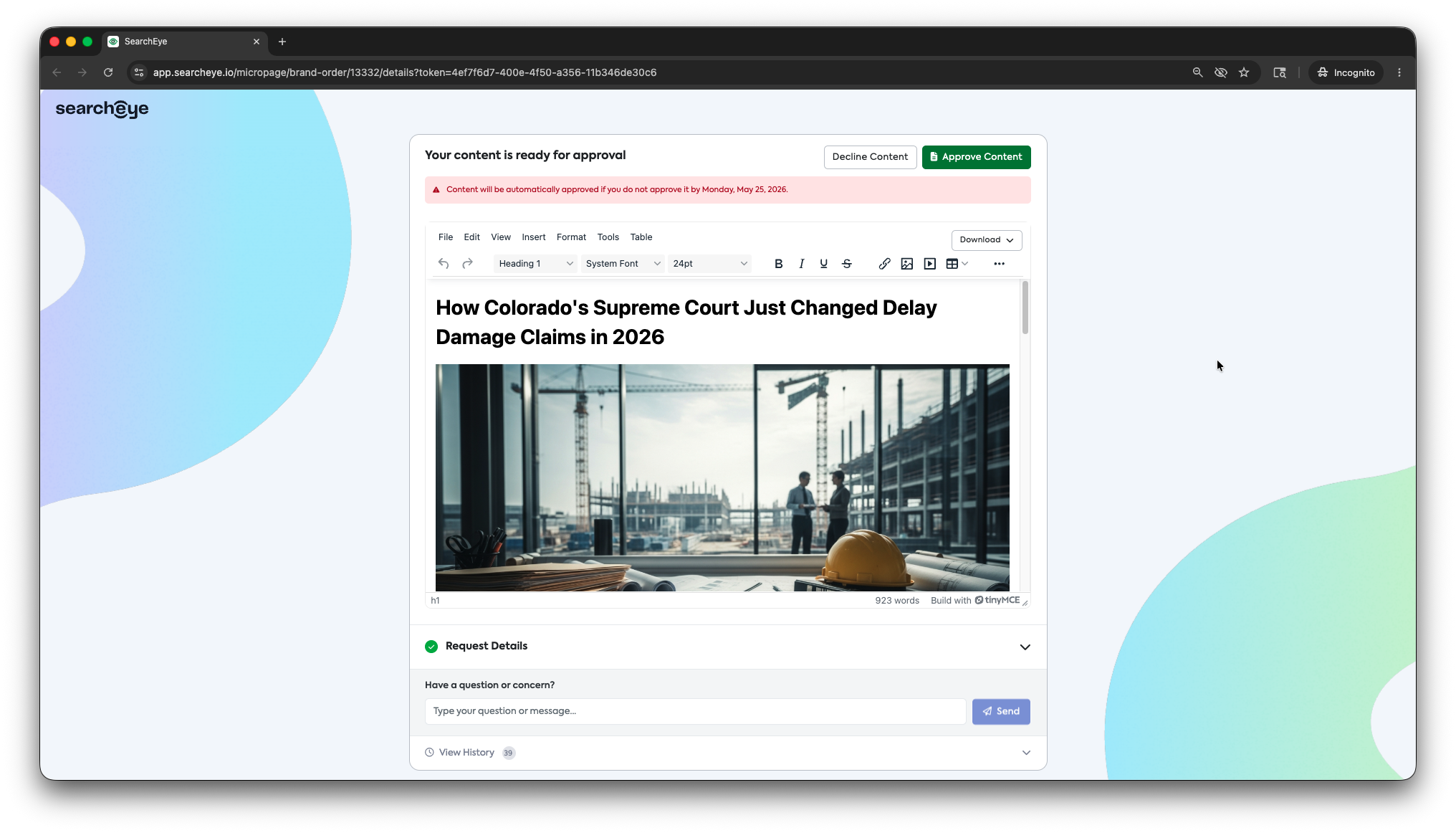
On the micropage, you can read the full article, download it, and either:
Approve Content — the article moves forward to the publisher
Decline Content — the content is sent back for revisions
Auto-approval deadline: If you do not approve or decline the content by the deadline shown on the micropage, it will be automatically approved and sent to the publisher. Make sure to review the content promptly when you receive the notification email.
This stage appears as Action Needed in your Brand Orders dashboard with a View content button.
6. Publisher final review and publishing Automatic
After you approve the content, it is sent to the publisher for their final review. The publisher approves the article and publishes it on their site.
The order will show as In Progress – Publisher content approval and then In Progress – Publisher submitting live link during this stage.
7. Published Complete
Once the article is live, the order status updates to Published and you will receive an email notification with the live link.
You can view and share the published article from the View published link button in your Brand Orders dashboard or directly from your order's micropage.
About Micropages
Each order has a dedicated micropage — a secure, shareable link that gives you access to your order without needing to log into SearchEye. Micropages are sent to you by email at key stages of the order process.
From your order's micropage you can:
View full order details including publisher and brand requirements
Complete payment when a publisher approves
Review and approve or decline article content
Download the article draft
View your invoice
Send questions or messages to SearchEye
View the complete order history
Micropages work on any device and do not require a SearchEye login. You can also forward the link to a team member if someone else needs to handle the review or payment.
Email Notifications
SearchEye sends email notifications at the key stages where your input is needed:
When a publisher approves your request and payment is required
When your content is ready for review and approval
When your placement has been published and the live link is available
You can control how and when you receive these notifications under Settings → Notifications. SearchEye offers three notification modes for brand order updates:
Real time — instant notifications as events happen
Daily digest — a summary email sent at a time you choose
Weekly digest — a summary email sent on a day and time you choose
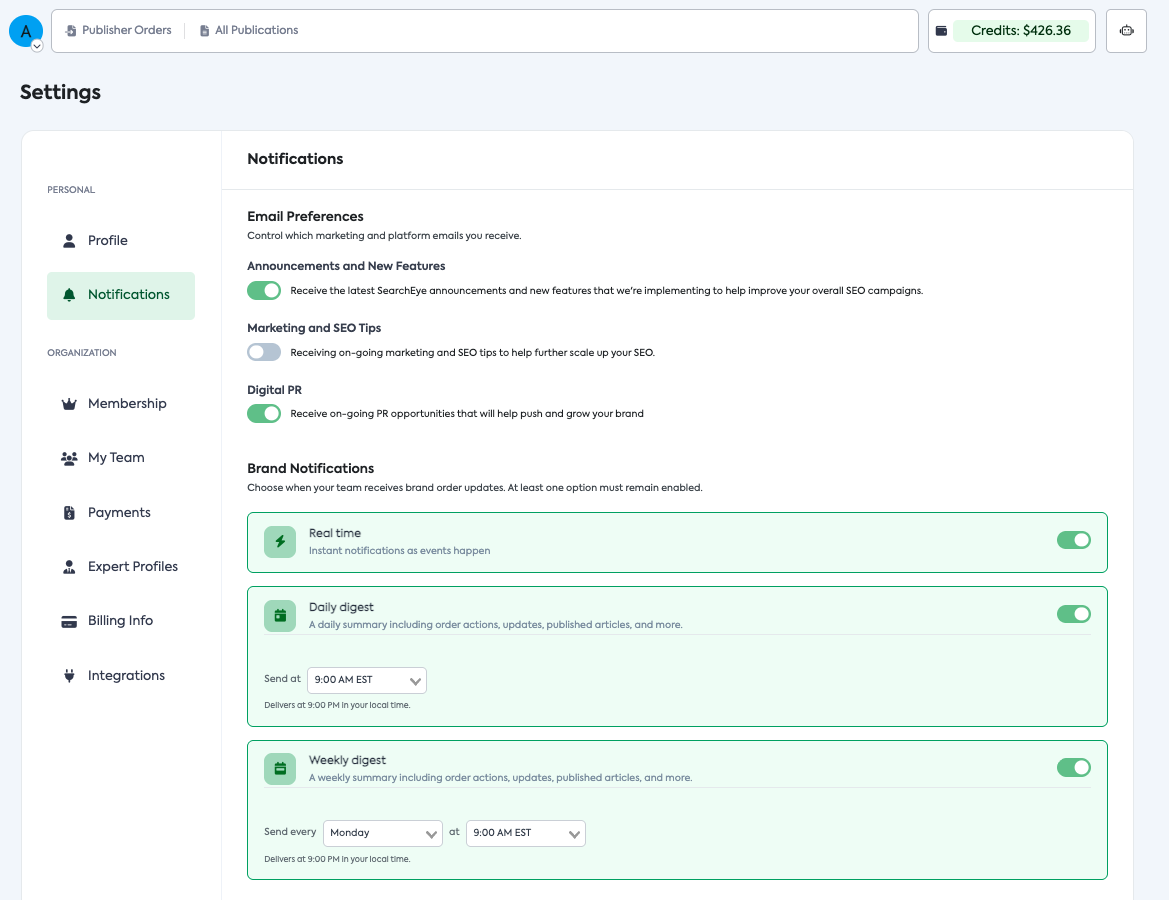
At least one notification mode must remain enabled. For time-sensitive actions like content approvals, it is recommended to keep Real time notifications on to avoid missing auto-approval deadlines.
For a full walkthrough of notification settings, see: Managing Your Notification Settings.
What If Something Goes Wrong?
Publisher declines the pitch — the order is canceled and credits are refunded automatically.
Content needs changes — click Decline Content on the micropage and SearchEye will revise the article.
Order is taking longer than expected — use the Have a question or concern? field on the micropage to message SearchEye directly.
Order is canceled after payment — credits are automatically refunded to your account. Check your Payments tab for confirmation.