Project Folders
Project Folders let you group all of your conversations, lists, and carts in one place. Each project holds shared context about your goals, so the more you use it, the smarter its recommendations become. This is especially useful for agencies managing multiple campaigns, since each client or campaign can live in its own project with its own criteria.
What Project Folders do
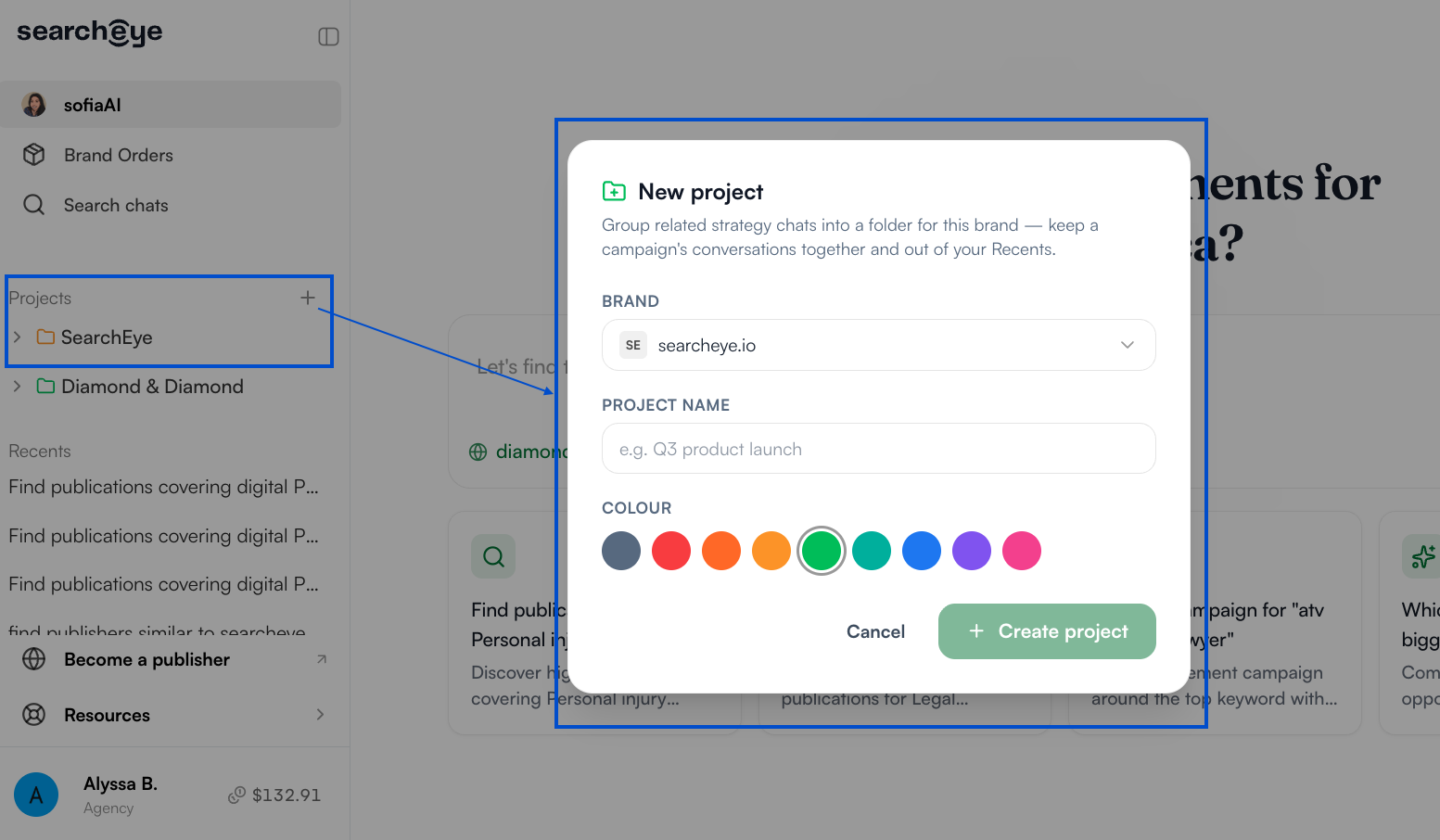
When you create a project, everything related to that campaign stays together:
Conversations are grouped inside the project instead of scattered across your workspace.
Context is shared across all chats in the project, so you only need to define your criteria once.
Lists and carts live inside the project, so you no longer need to juggle multiple carts for different campaigns.
Adding context to a project
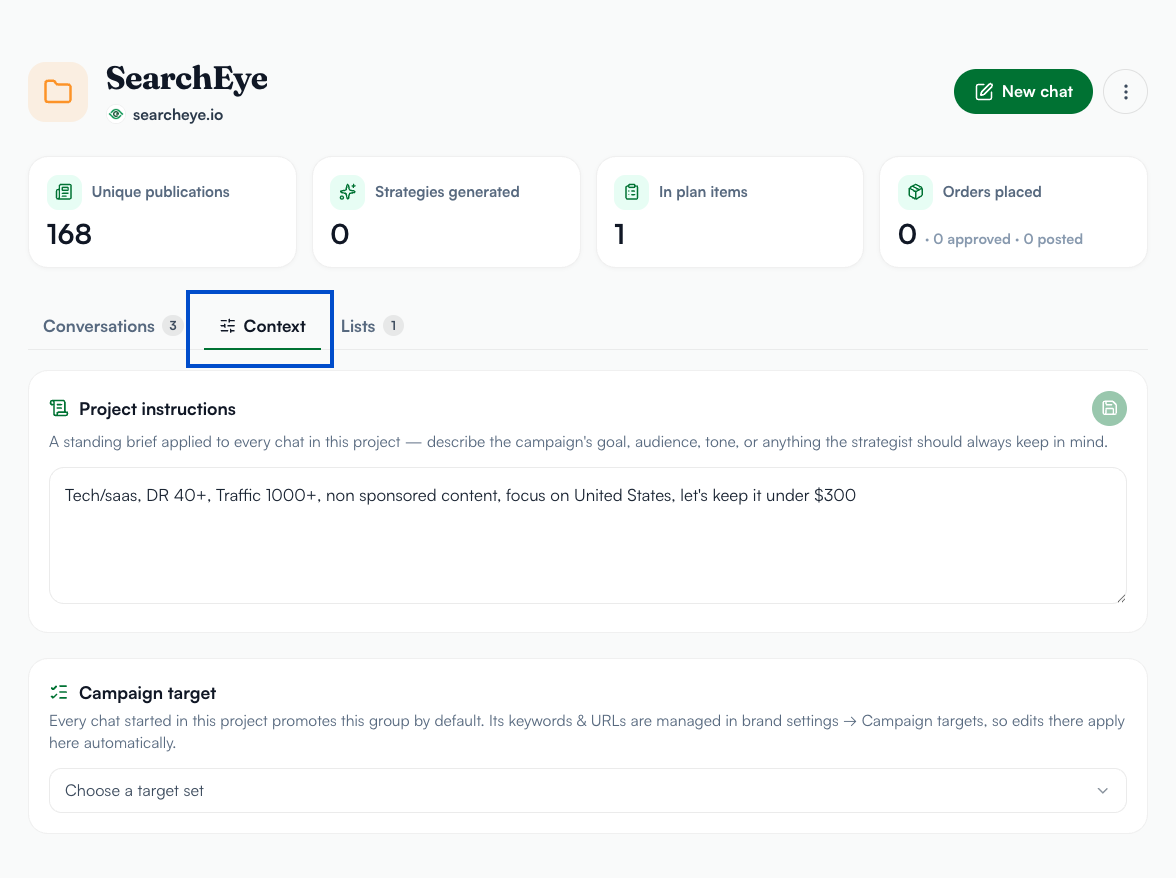
Context is what powers your project's recommendations. You can add criteria such as:
Target geography (for example, Texas)
Minimum Domain Rating (for example, DR 40+)
Traffic thresholds
Budget (for example, under $300)
Country
Follow type (dofollow or nofollow), if you want to specify it
Once you save your context, it applies to every new conversation you start inside that project.
Finding publications with your project context
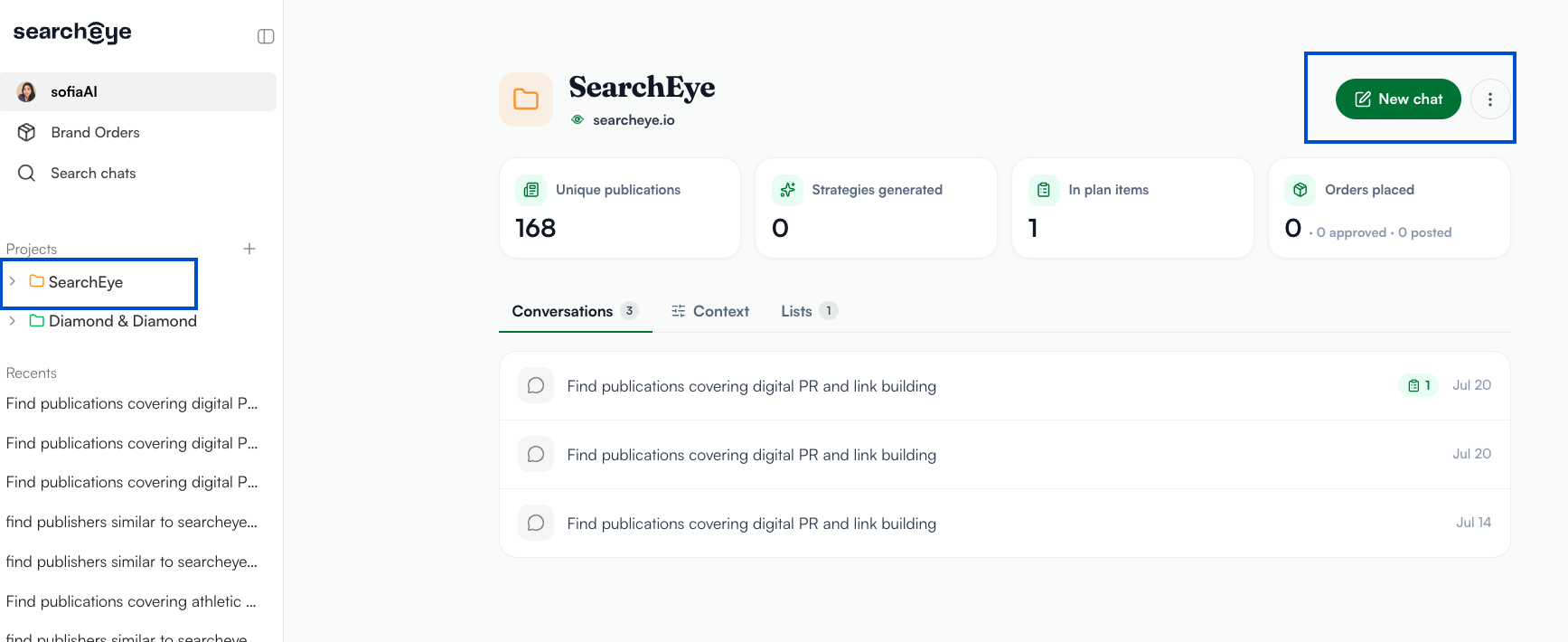
Open your project and start a new chat.
Ask SearchEye to select publications.
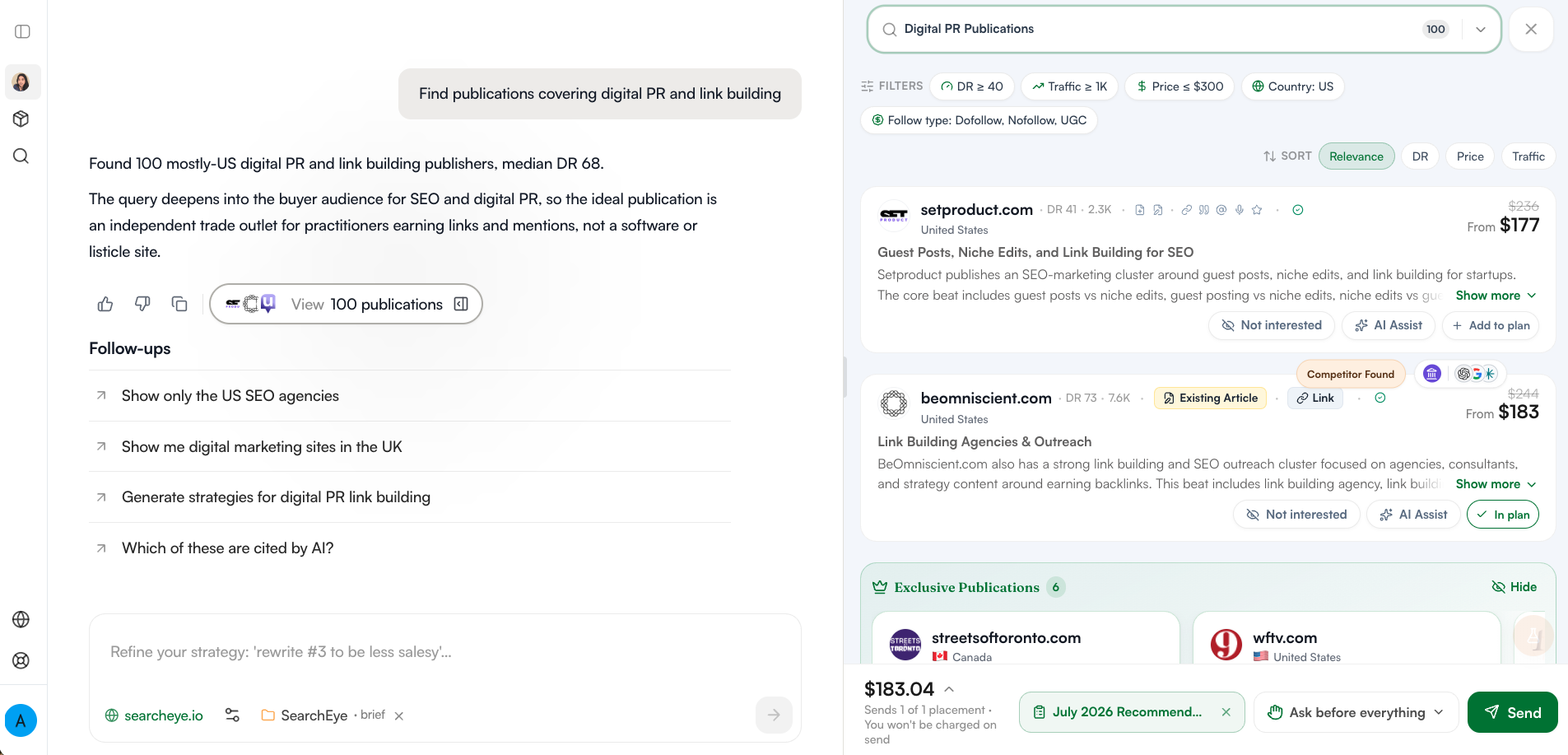
In about 5 to 10 seconds, SearchEye returns the best-match publications based on your saved context and goals.
You'll see the applied filters (DR, Traffic, Price, Country, and Follow type if specified) so you know exactly which criteria shaped the results.
Saving publications to a project list
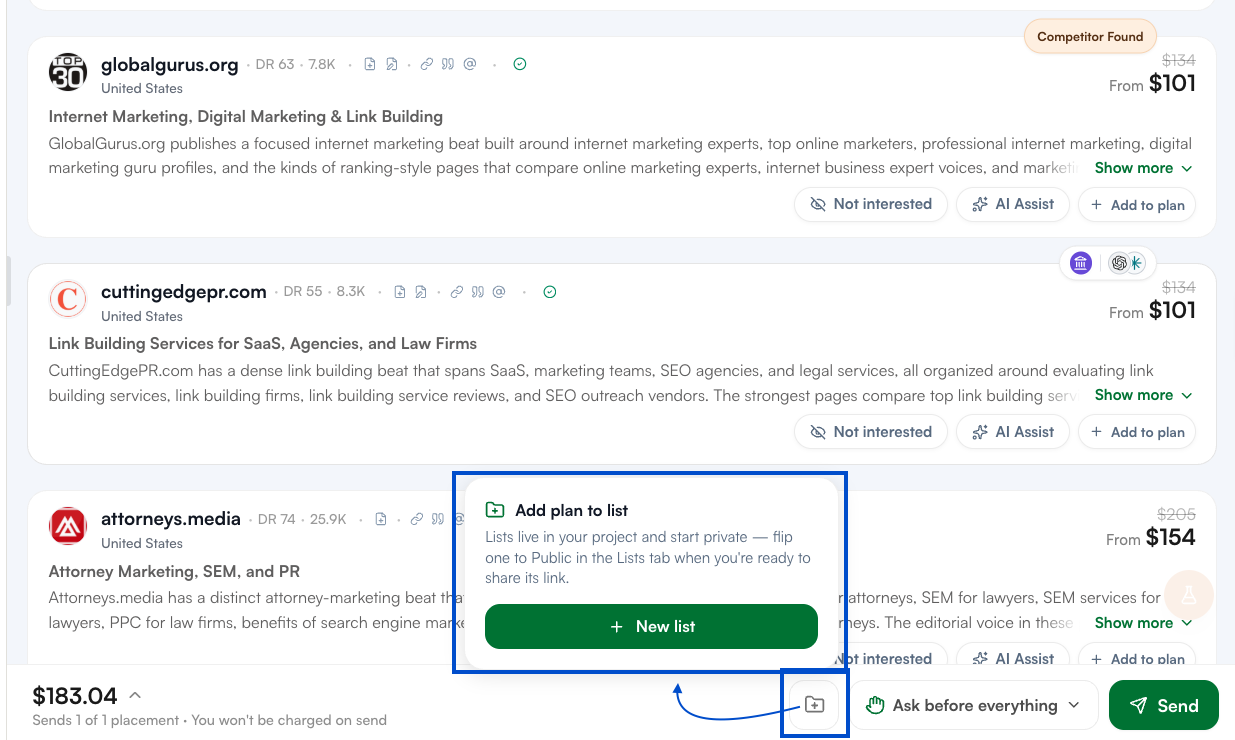
Instead of managing separate carts, you can save publications directly into lists inside your project:
Select a publication from your results.
Choose whether to link it to an existing article. If a site is already appearing in prompt tracking for relevant queries (for example, "best link building agencies"), you can attach your placement to that article.
Add the plan you want.
Save it to a list. You can create a new list at this step, for example "July 2026 Recommendations."
All lists stay inside the project, so everything for that campaign is easy to find in one place.
Sending your order
When your list is ready, click Send. Your order goes straight to the publisher for review and approval.
Choosing your approval workflow
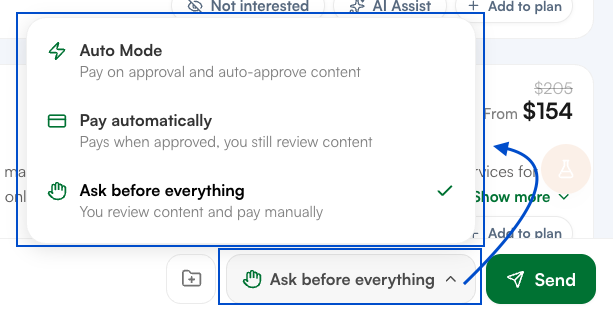
You control how much of the process is automated:
Fully automated: If the publisher approves, the placement publishes automatically with no further sign-off needed from you.
Manual review: Require your own approval at each step, such as checking out once the publisher approves, then approving the content before it goes live.
You can adjust these settings to match how hands-on you want to be for each project.
Questions?
If you have any questions about Project Folders, reach out to our support team at brands@searcheye.io and we'll be happy to help.