Updating Your Profile and Password
You can update your name and change your account password anytime from your workspace settings. This article walks you through both.
Accessing Your Profile Settings
Log in to your SearchEye account.
Open Settings from your workspace menu.
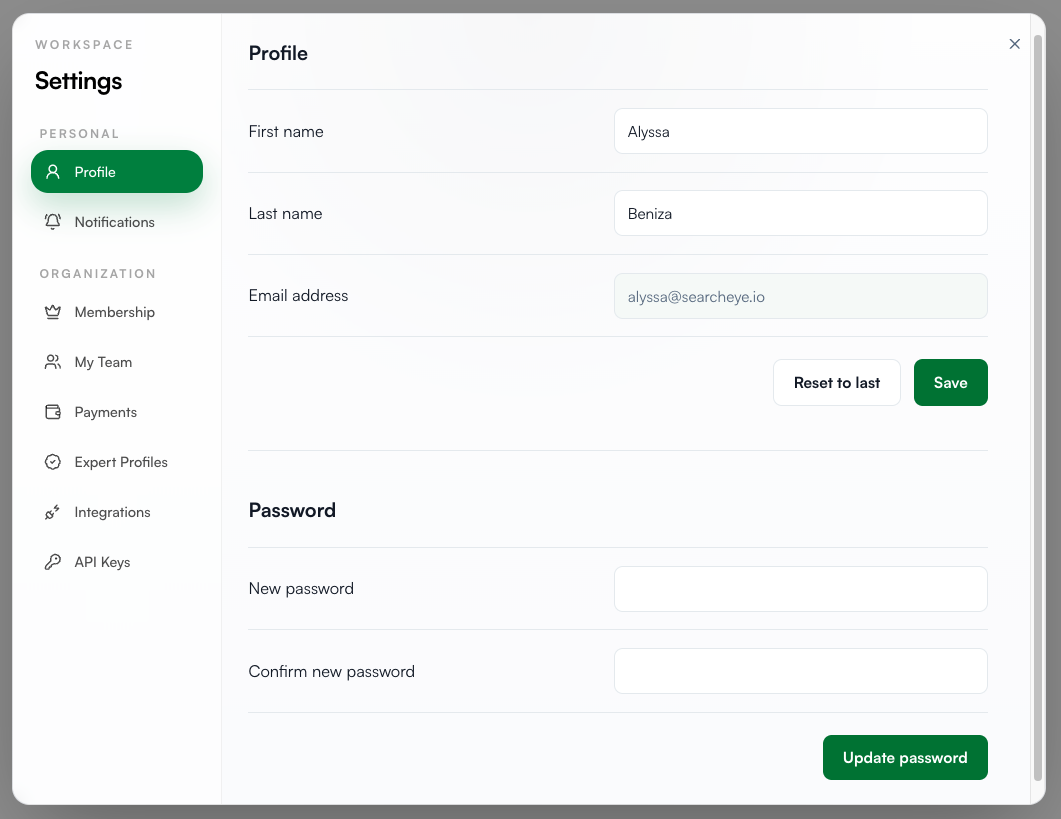
Under the Personal section in the left sidebar, select Profile.
Updating Your Personal Information
From the Profile section, you can edit the following fields:
First name
Last name
Once you've made your changes, click Save to apply them. If you'd like to discard your edits and revert to your previously saved details, click Reset to last instead.
Note: Your email address cannot be changed from this page — it appears grayed out because it's tied to your account login. If you need to update the email associated with your account, please reach out to our support team and we'll be happy to assist.
Changing Your Password
You can update your password from the same page, under the Password section:
Enter your new password in the New password field.
Re-enter the same password in the Confirm new password field.
Click Update password to save your changes.
Your new password takes effect immediately. Be sure to use it the next time you log in.
Tips for a strong password:
Use a mix of uppercase and lowercase letters, numbers, and symbols
Avoid reusing passwords from other accounts
Consider using a password manager to generate and store secure passwords
Troubleshooting
My passwords don't match. Make sure the New password and Confirm new password fields are identical — passwords are case-sensitive.
My changes didn't save. Confirm you clicked Save (for profile changes) or Update password (for password changes) before closing the settings window.
I forgot my current password. If you're unable to log in, use the Forgot password option on the login page to reset it via email.
Still need help? Contact our support team at brands@searcheye.io, and we'll get you sorted.