Adding Custom Images and PDFs to Requests
Summary: This article explains how to attach brand-specific assets (images and PDF guidelines) to individual PR or link placement requests to guide contentAI in generating accurate, on-brand content.
Overview
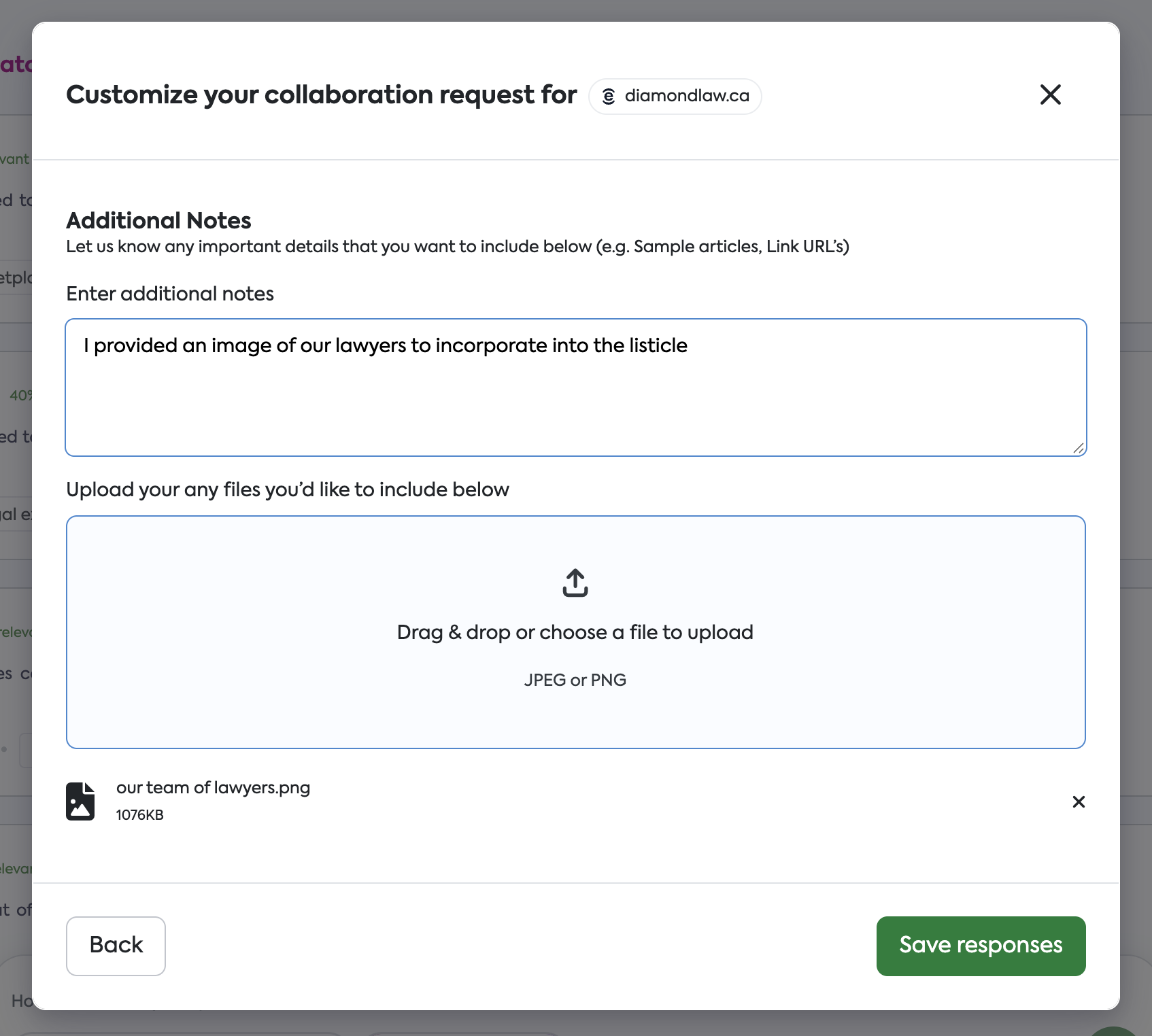
When placing a request for a PR or link placement, you can now upload specific images and documents. These assets provide context for contentAI, our internal content generator, ensuring that the final output aligns with your brand guidelines and visual identity.
This feature is designed for brands that require specific visual representation or need to adhere to strict brand safety guardrails.
How contentAI Processes Your Assets
Understanding how the system analyzes your uploads will help you select the best assets:
AI Analysis: The system scans every uploaded image to understand its subject matter and context.
Placement Determination: contentAI automatically categorizes images to determine their best fit—whether as a featured article image, an inline image, or a thumbnail next to your brand name in a listicle.
Contextual Integration: Information extracted from PDFs (such as brand guidelines) is used to fact-check product descriptions and technical details.
Use Cases
We recommend using this feature for the following scenarios:
1. Visual Placement
Featured Images: Suggesting a specific high-resolution image to head an article.
Listicles: Ensuring the correct product packaging or logo appears next to your brand entry.
Inline Content: Providing screenshots or infographics for "How-to" guides and tutorials.
2. Brand Accuracy
Product Reviews: Uploading spec sheets (PDF) to ensure technical specifications are cited correctly.
Comparisons: Providing side-by-side product shots for review articles.
Reputation Management: seeding high-quality images into search results (GEO) to control how users view your brand in AI-generated answers.
Step-by-Step Guide
This feature is available at the request level, meaning assets uploaded here apply only to the specific article you are currently requesting.
Initiate a Request: Start a new order for a PR or Link Placement.
Locate Additional Information: Scroll to the "Additional Information" section of the request form.
Upload Assets: Drag and drop your Images or PDFs into the upload field.
Add Context: In the text field, briefly describe how the assets should be used (e.g., "Use 'image_01.jpg' as the featured image").
Note: If you do not provide specific text instructions, contentAI will determine the best placement based on its analysis of the image.
Best Practices & Limitations
Publisher Editorial Standards
While this feature allows you to suggest content, publisher acceptance is not guaranteed.
Avoid Overly Promotional Content: Images that look like advertisements or banners are frequently rejected by publishers.
Editorial Priority: contentAI prioritizes the publisher's editorial guidelines above all else to ensure your placement is fulfilled. If your provided image conflicts with a publisher's style guide, it may be omitted.
Request-Level vs. Global Assets
It is important to distinguish between this feature and your global settings:
Feature | Scope | Best For |
Additional Info Uploads | Applies to one specific request only. | Specific product launches, one-off campaigns, or unique article angles. |
SearchEye Co-Pilot | Applies to all requests globally. | Logos, general brand guidelines, and evergreen media assets stored in your Knowledge Graph. |