How to Customize Your Collaboration Requests with "Additional Notes"
At SearchEye, we handle the heavy lifting—writing the content, managing the pitch, and securing the placement. However, we know that every brand has unique needs.
The "Additional Notes" and "File Upload" sections of your collaboration request are your dedicated spaces to provide specific instructions, assets, and context.
The SearchEye PR Co-Pilot automatically takes your additional notes and parses them with AI (while incorporating any additional context) automatically to provide the best possible content generation experience.
This guide outlines how to use these fields to maximize the quality and relevance of your placements.
1. Integrating Google Maps & Business Profiles (New!)
Local SEO and social proof are vital. You can now use the "Additional Notes" text field to pass your Google My Business (GMB) data directly to our writing team.
How it works: Simply paste a link to your Google Maps profile or GMB listing.
What we do: Our system will collect your business information, including your top 5 recent reviews.
The Result: We make best efforts to link to the profile and incorporate your positive reviews and business context naturally into the article.
How to add your Google Maps Profile:
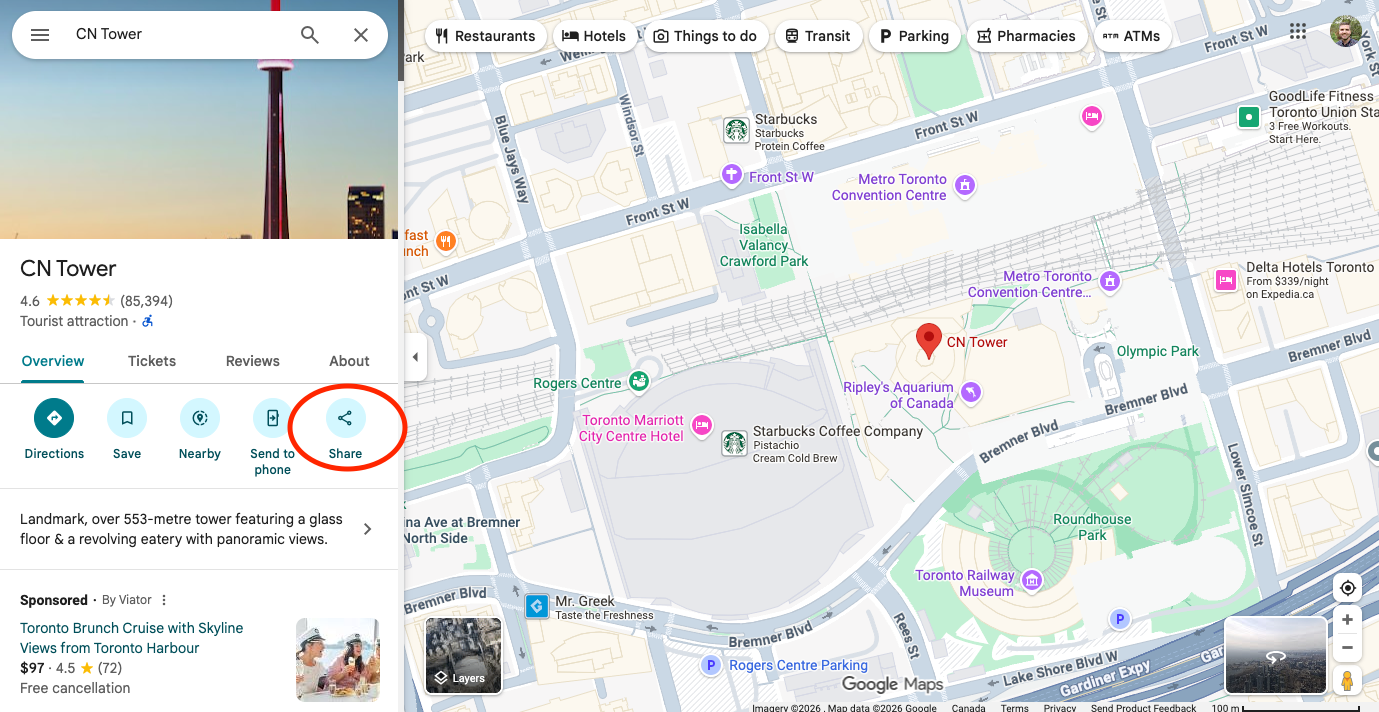
Find the Profile in Google Maps: Search for your business, copy the URL from the browser address bar (or the "share" link).
Add "Additional Notes" to your request: Provide additional context to your notes like "please link to our maps profile: [insert link here]"
Note: Some publications may charge an extra fee or (in rare cases) not allow any additional "brand" links in content. We'll make best efforts but can not guarantee inclusion.
2. Including Secondary Links
Sometimes a single link isn't enough. If you want to direct readers to a specific asset other than the main target URL, you can request a secondary link in the "Additional Notes" box.
Common use cases:
Linking to a "Sister site" or partner brand.
Linking to a specific Social Media post or profile.
Linking to a previous news article where the client was featured.
How to do it: Just drop a note saying: "Please include a secondary link to: [URL]". We will review the content on that page, summarize it, and find a natural way to mention it in the article.
Note: Some publications may charge an extra fee or (in rare cases) not allow any additional "brand" links in content. We'll make best efforts but can not guarantee inclusion.
3. Uploading Custom Images & Assets
Visuals make articles more engaging. If you have specific brand photography, infographics, or team photos (like the lawyer profiles in the example above), you can upload them directly.
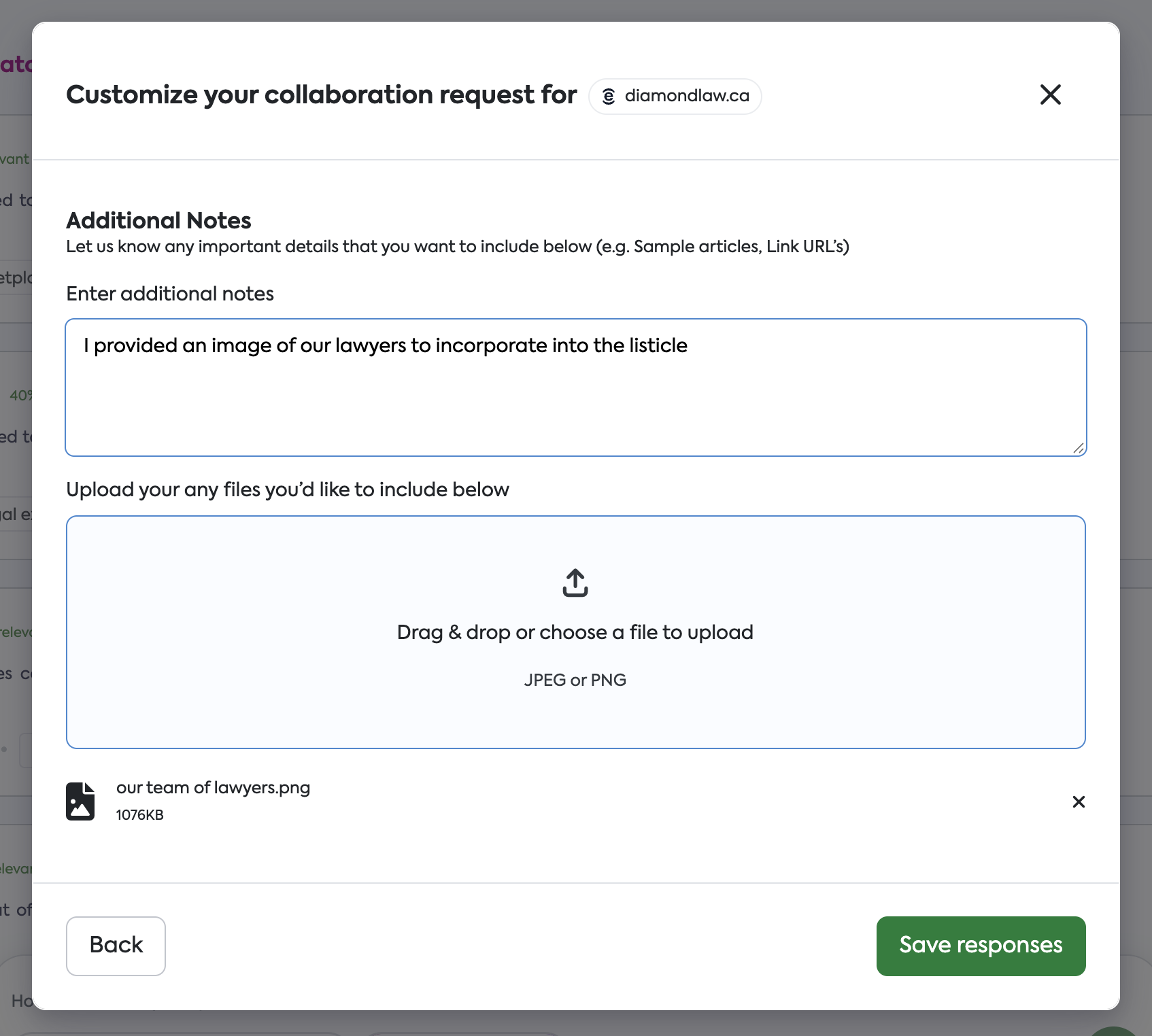
The SearchEye PR Co-Pilot will determine if images should be incorporated as a "featured image" or "contextual image" inside of the article itself.
Where: Use the "Upload your any files..." box.
Supported: JPEGs and PNGs.
Learn more: For a deep dive on image specifications and handling PDF requests, read our guide on Adding Custom Images and PDF Requests here.
4. Submitting Topics & Brand Strategy
If you have a very specific angle, a pre-written brief, or specific brand guidelines you need us to adhere to, the "Additional Notes" section is the place to put them.
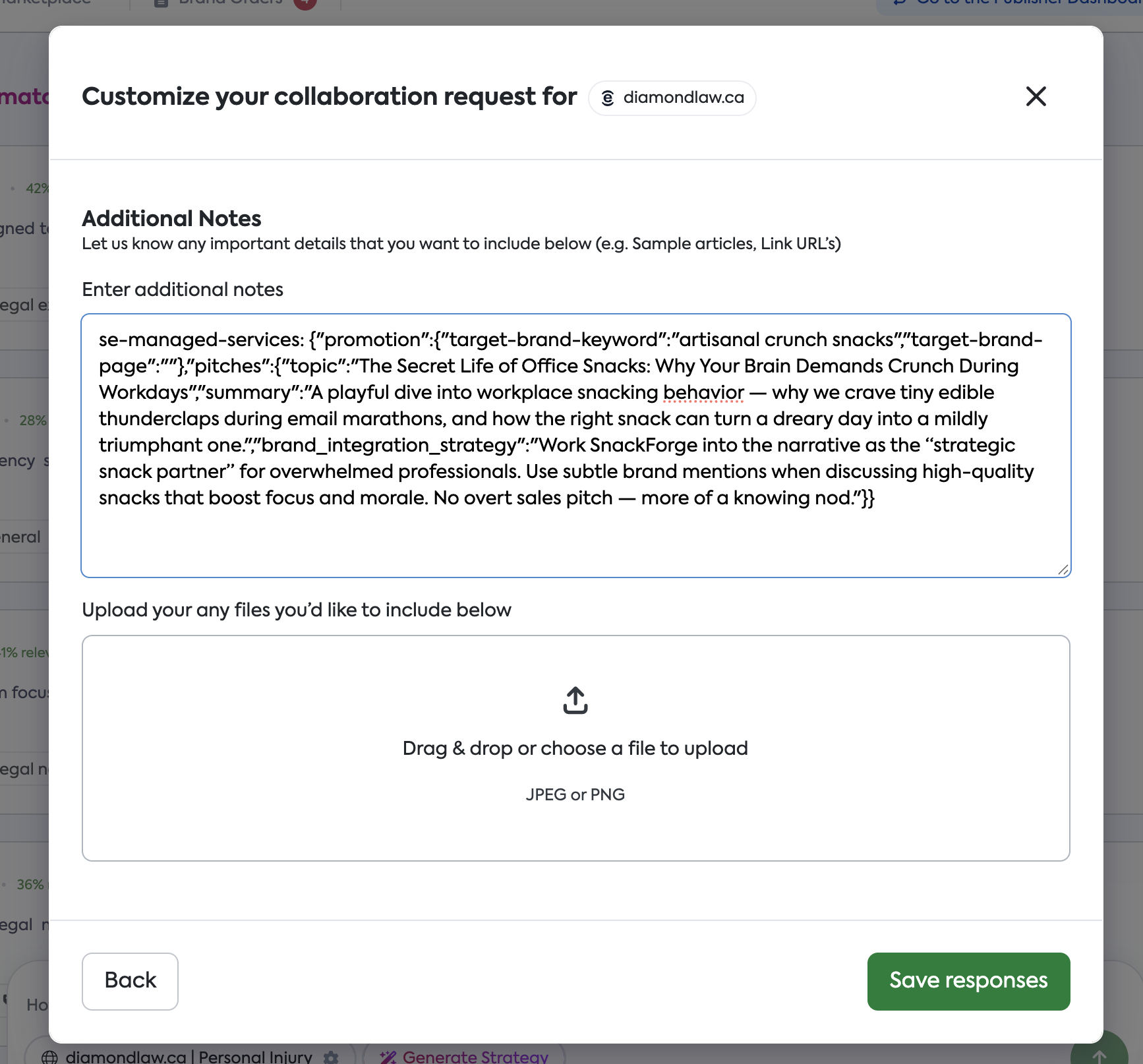
Rather than providing context, we allow brands/agencies to directly provide JSON (we provide a template in the article below) containing the following information (with example):
Brand: snackforge.com
Publication: munch-monthly.com
Target Page: https://snackforge.com/crunch-kit
Target Keyword: artisanal crunch snacks
Topic: The Secret Life of Office Snacks
Brief: A concise explanation of why office workers crave bite-sized pick-me-ups throughout the day.
Brand Integration Strategy: Position SnackForge as a natural, workplace-friendly snack option.
You create a simple tool to create the JSON from the provided Google Sheets template below:
Learn more: To see how to structure these inputs efficiently, check out A Faster Way to Submit Topics, Briefs & Brand Strategy Inputs.
5. Submitting Your Own Content via Google Docs
Have content you've already written? You can now submit fully drafted articles directly through the "Additional Notes" field using a Google Docs link.
How it works: Paste a shareable Google Docs link (with read access enabled) into the "Additional Notes" field.
What we do behind the scenes:
Our system automatically processes your document to maximize publisher acceptance:
Content cleanup: We format titles, headings, and structure to meet publication standards.
Image optimization: We compress images, add SEO-friendly alt text, and ensure crawlability.
Meta data: We generate appropriate meta titles and descriptions.
Editorial review: Our AI flags potential issues and suggests improvements to increase acceptance likelihood.
Publisher-specific tweaks: We make small adjustments to align with each publication's guidelines and preferences.
Example of our editorial review output:
Total Changes: 2
Total Issues: 1
Acceptance Likelihood: Medium

Changes Made:
- Restructured heading tags for better hierarchy
- Removed outdated date reference for accuracy

Flagged Issues:
- Content format may not perfectly match publisher expectations
How to share your Google Doc:
Open your document in Google Docs
Click Share → Get link
Set access to "Anyone with the link can view"
Paste the link in "Additional Notes" with context like: "Please use this article: [link]"
💡 Pro-Tip for Agencies: Streamlining Your Workflow
We know agencies manage high volumes of requests. You don't need to manually type these notes every time. We designed this field to be flexible enough to fit your internal workflows.
The "Copy/Paste" Strategy: Many of our agency partners maintain a column in their internal tracking sheets (Airtable, Monday, Excel, etc.) labeled "SearchEye Context."
Save your GMB links, secondary link preferences, and standard brand blurbs in your own sheet.
When placing a request, simply copy that cell and paste it directly into the "Additional Notes" field.
API Users: If you are integrating via our API, these fields can be populated programmatically, allowing you to pass this data through from your own dashboards automatically.